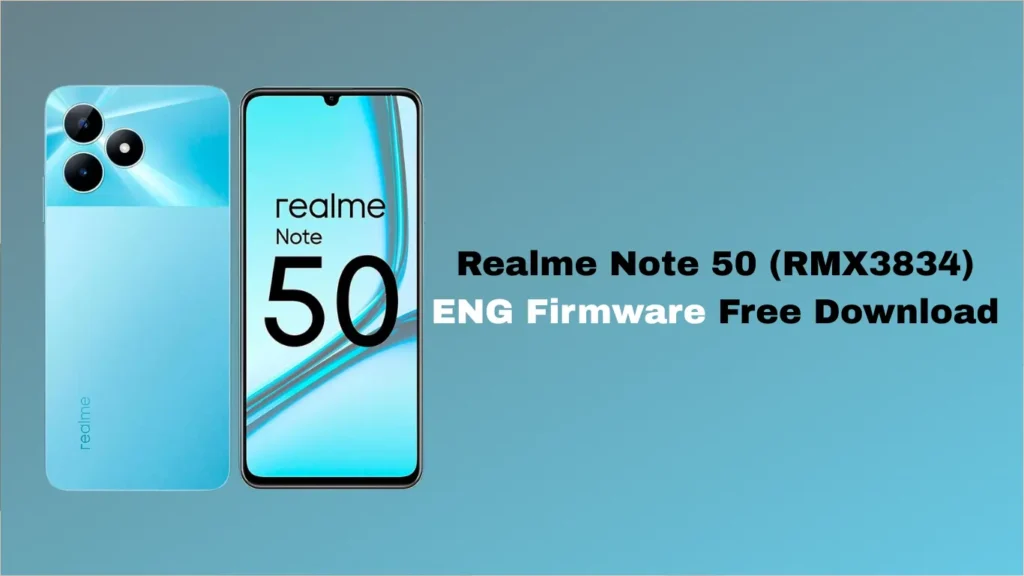
Are you facing software issues with your Realme Note 50? Whether your device is stuck on the boot logo, suffering from a forgotten pattern lock, or you are a mobile technician looking to perform IMEI repairs, the Realme Note 50 (RMX3834) ENG Firmware is the ultimate tool you need.
In this guide, we provide the official download link for the engineering firmware and a step-by-step tutorial on how to use it safely.
What is Realme Note 50 (RMX3834) ENG Firmware?
Engineering (ENG) Firmware is a special developer-grade software used by factory technicians to test hardware components and fix deep-level software issues. Unlike the standard Global or Indian ROMs, the ENG firmware allows for more flexibility in repairing the device’s internal file system.
Why Do You Need It?
Using the Realme Note 50 (RMX3834) ENG Firmware can help you solve several critical issues:
- Fix Bootloops: If your phone won’t get past the Realme logo.
- Repair IMEI: Essential for fixing “Invalid IMEI” or “Null IMEI” issues.
- Remove MDM/Demo Locks: Useful for retail units or managed devices.
- Bypass FRP/Factory Reset: If you are locked out of your Google account.
- Unbrick Your Device: Revive a “dead” phone caused by software corruption.
Device Information
- Device Name: Realme Note 50
- Model Number: RMX3834
- Chipset: Unisoc Tiger T612
- File Type: ENG Firmware / Engineering ROM
- Tool Required: SPD Upgrade Tool or Pandora Box (for advanced repairs)
Download Section
Click the link below to download the latest firmware package. Ensure you have a stable internet connection, as the file size is significant.
👉 [Download Realme Note 50 (RMX3834) ENG Firmware Here]
How to Flash Realme Note 50 (RMX3834)
Before you begin, ensure your phone has at least 50% battery, and you have backed up any important data (if possible), as this process will wipe your device.
Prerequisites:
- Install Drivers: Download and install the Unisoc (SPD) USB Drivers on your PC.
- Flash Tool: Download the SPD Upgrade Tool (Research Download Tool).
- USB Cable: Use a high-quality original USB cable.
Steps to Flash:
- Extract Files: Extract the downloaded ENG Firmware and the SPD Upgrade Tool to your desktop.
- Open Tool: Launch UpgradeDownload.exe.
- Load Firmware: Click on the Gear icon (Load Packet) and select the .pac file from the extracted firmware folder.
- Start Process: Click the Play button (Start Downloading).
- Connect Device: Power off your Realme Note 50. Hold the Volume Down button and connect it to the PC via USB.
- Flashing: The tool will detect the device, and the flashing process will start automatically.
- Finish: Once you see a green “Passed” message, disconnect your phone and turn it on.
FAQ,
Yes, flashing the ENG firmware typically resets the device to a developer state, which bypasses the standard Factory Reset Protection (FRP).
Yes, the Realme Note 50 (RMX3834) ENG Firmware is specifically used by technicians to enable the diagnostic ports required for IMEI repair using professional tools like Pandora, UnlockTool, or CM2.
Flashing any firmware carries a risk of “hard bricking” your device if done incorrectly. Always ensure you are using the correct model (RMX3834) and never disconnect the cable during the process.
No. This is a developer/engineering ROM. It lacks many consumer features and may have a different UI. Once you fix the issue (like IMEI or Unbricking), you should flash the Official Global Firmware to return the phone to normal use.
In most cases involving Unisoc chipsets and the SPD Upgrade Tool, you do not need to manually unlock the bootloader to flash a .pac firmware file.
Disclaimer: Flashing firmware is an advanced procedure. We are not responsible for any damage to your device. Proceed at your own risk.