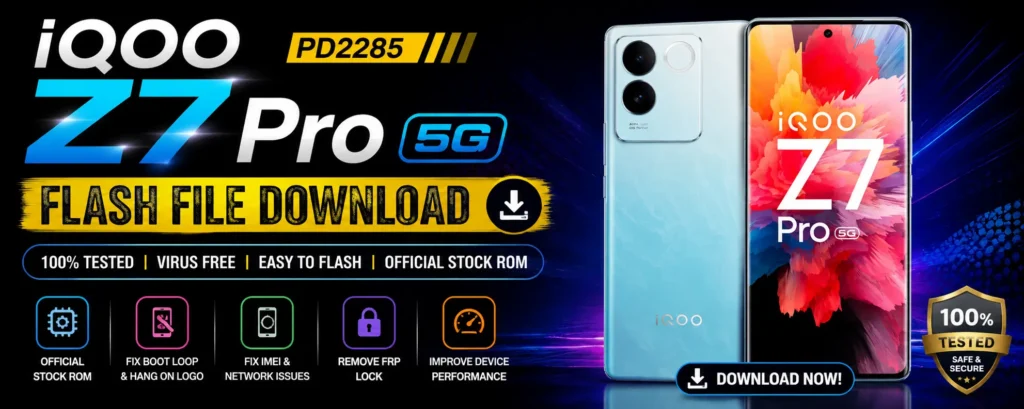
The iQOO Z7 Pro 5G (PD2285) is a powerhouse featuring the MediaTek Dimensity 7200 chipset. However, like any Android device, software glitches can occur. Flashing the official firmware (Stock ROM) is the most effective way to resolve deep-seated system errors, remove screen locks, or fix software-related performance lag.
Why Do You Need the iQOO Z7 Pro 5G Flash File?
There are several scenarios where downloading and installing the official PD2285 firmware becomes necessary:
- Fixing Bootloops: If your phone keeps restarting and never reaches the home screen.
- Unbricking: If your device is completely unresponsive after a failed update or custom ROM installation.
- Removing Screen Locks: If you’ve forgotten your Pattern, PIN, or Fingerprint lock (Note: This will erase all data).
- Software Upgrades/Downgrades: To move back to a stable version of Funtouch OS.
- Fixing Lag and Bugs: To clear out corrupted system files that a factory reset can’t fix.
File Information: iQOO Z7 Pro 5G PD2285
Before downloading, ensure these details match your device settings (Settings > About Phone).
| Attribute | Details |
| Device Name | iQOO Z7 Pro 5G |
| Model Code | PD2285 |
| Chipset | MediaTek Dimensity 7200 |
| Operating System | Android / Funtouch OS |
| File Type | Stock ROM (Flash File) |
Pre-Requisites for Flashing
Before you begin the flashing process, make sure you have the following ready:
- Battery Level: Charge your iQOO Z7 Pro to at least 50% to avoid mid-process shutdowns.
- USB Cable: Use the original iQOO Type-C cable for a stable connection.
- Drivers: Install the MediaTek (MTK) USB Drivers on your PC so the computer can recognize the PD2285.
- Backup: Flashing will wipe all your personal data. Ensure you have backed up your photos, contacts, and documents.
- Flashing Tool: Usually, Vivo/iQOO devices require the AFIT (AFTool) or professional tools like UnlockTool or DFT Pro for newer MediaTek chips.
How to Install iQOO Z7 Pro 5G PD2285 Stock ROM
Disclaimer: Flashing firmware is a sensitive process. Proceed at your own risk. We are not responsible for hardware damage.
- Download and Extract: Download the iQOO Z7 Pro 5G PD2285 Flash File and extract it on your Desktop using WinRAR or 7-Zip.
- Install Drivers: Install the MTK VCOM drivers on your Windows PC.
- Launch Flash Tool: Open your preferred flashing tool (e.g., Vivo Official Flash Tool or a Multi-Tool).
- Load Firmware: Click on ‘Choose’ or ‘Scatter’ and navigate to the extracted folder to select the firmware file.
- Connect Device: Power off your phone. Hold the Volume Up + Volume Down buttons and connect the phone to the PC via USB.
- Start Flashing: Once the tool detects the device, click ‘Start’ or ‘Download.’
- Wait for Completion: Do not disconnect the cable until you see a “Success” or “Passed” message.
- Reboot: Once finished, disconnect the phone and turn it on. The first boot may take 5–10 minutes.
Read Also:
FAQ,
Yes, the files provided are official stock ROMs sourced from iQOO/Vivo servers, ensuring system stability and security.
If you flash the official stock firmware to fix a software bug, it generally does not void the warranty. However, unlocking the bootloader or using custom ROMs might.
Yes, flashing the full firmware often resets the device, but you may still be prompted for the original Google credentials. Specialized tools are usually used alongside this file for FRP bypass.
Check your USB cable and ensure the MediaTek USB Drivers are correctly installed. Try a different USB port (preferably USB 2.0) on your computer.
If it fails, check the connection and ensure you are using the correct version of the flash tool. Do not try to turn on the phone if the flash was incomplete; simply restart the process.
Final Note: Always keep your iQOO Z7 Pro 5G PD2285 updated to the latest software version via OTA (Over-The-Air) updates to prevent system vulnerabilities. Use the flash file method only when the phone is unresponsive or experiencing severe software failures.