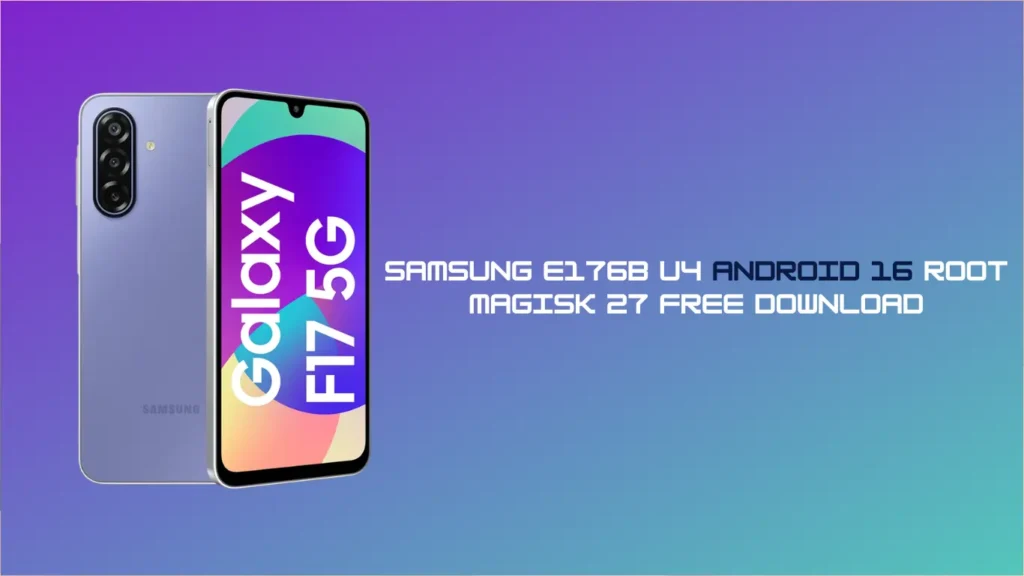
If you are reading this, you are probably tired of the restrictions on your phone. You want full control. You’ve got the Samsung E176B running the latest Android 16, but you’re stuck on the U4 binary, and you need a way out.
Rooting modern Samsung devices isn’t as simple as it used to be back in the day, especially with Android 16 tightening security. But don’t worry, I’ve got you covered. In this guide, we are going to walk through the exact steps for the Samsung E176B U4 Android 16 ROOT process using the reliable Magisk v27.
Let’s unlock the full potential of your device.
⚠️ Important Disclaimer (Read This First)
Before we start, let’s be real for a second. Rooting your Samsung E176B will:
- Trip Knox: Your warranty will likely be voided.
- Disable Some Apps: Samsung Pay and Secure Folder might stop working permanently.
- Wipe Your Data: Unlocking the bootloader deletes everything. Backup your data now.
I am not responsible if you brick your device. You are doing this at your own risk. However, if you follow the steps carefully, you should be fine!
What You Need (Prerequisites)
To pull off this Samsung E176B U4 Android 16 ROOT, you need to gather a few tools on your PC:
- Samsung USB Drivers: Installed on your computer.
- Odin3 Tool: The standard flashing tool for Samsung.
- Magisk v27 APK: Download the latest version.
- Stock Firmware: You need the exact firmware for the Samsung E176BXXS4BZA5 with U4 (Bit 4) binary. Do not mix bit versions or the flash will fail.
- 7-Zip or WinRAR: To extract files.
Flash Name:  E176B U4 Android 16 ROOT (E176BXXS4BZA5)[MAGISK 27]

File Size: 80.00 MB

Download: Click Here
Step 1: Unlock the Bootloader
You can’t root a locked phone. Here is how to unlock the E176B:
- Go to Settings > About Phone > Software Information.
- Tap Build Number 7 times until it says “Developer mode has been enabled.”
- Go back to the main Settings menu and find Developer Options.
- Look for OEM Unlocking and toggle it ON.
- Power off your phone completely.
- The Combo: Press and hold both Volume Up + Volume Down buttons and connect the phone to your PC via USB.
- A warning screen will appear. Long-press Volume Up to unlock the bootloader.
- Note: The phone will wipe all data and reboot. You must set it up again, connect to Wi-Fi, and ensure “OEM Unlocking” is still greyed out in Developer Options.
Step 2: Patching the AP File with Magisk
This is where the magic happens for the Samsung E176B U4 Android 16 ROOT.
- Download your stock firmware to your PC and extract it. You will see files starting with AP, BL, CP, and CSC.
- Copy the AP file (it ends in .tar.md5) to your phone’s internal storage.
- Download and install the Magisk v27 APK on your phone.
- Open Magisk, tap Install, and select “Select and Patch a File”.
- Browse and select the AP file you just copied.
- Magisk will patch the file. Once done, you will find a file named magisk_patched_[random_strings].tar in your Downloads folder.
- Transfer this patched file back to your computer.
Step 3: Flash the Rooted File via Odin
Now we install the root access.
- Boot your Samsung E176B into Download Mode again (Volume Up and Down while plugging in USB, then press Volume Up once).
- Open Odin on your PC as Administrator.
- You should see a blue box in Odin (ID: COM), meaning your phone is connected.
- Load the files:
- Click BL and select the BL file from your extracted firmware.
- Click CP and select the CP file.
- Click CSC and select the HOME_CSC file (this helps prevent some data conflict errors, though a wipe is usually inevitable).
- CRITICAL: Click AP and select the magisk_patched.tar file you moved from your phone.
- Go to the Options tab in Odin and uncheck Auto Reboot.
- Click Start.
Step 4: Final Steps and Factory Reset
Once Odin says PASS!:
- Disconnect the phone.
- Hold Volume Down + Power to exit Download mode.
- The moment the screen goes black, immediately switch to holding Volume Up + Power to enter Recovery Mode.
- Use the volume keys to navigate to Wipe Data/Factory Reset and confirm with the Power button.
- Select Reboot System Now.
When the phone boots up, install the Magisk app again. It might ask to complete an “Additional Setup.” Let it do its thing, and the phone will reboot one last time.
Congratulations! You have successfully achieved Samsung E176B U4 Android 16 ROOT access.
FAQ:
The “U4” (or sometimes S4/B4) refers to the bootloader security bit. You cannot downgrade this. If your phone is on U4, you must use U4 (or higher) firmware. Using U3 will cause the flash to fail immediately.
Yes. Unlocking the bootloader performs a mandatory factory reset. Always back up your data to a PC or cloud before starting the Samsung E176B U4 Android 16 ROOT process.
By default, most banking apps detect root and won’t open. You will need to use Magisk modules (like Play Integrity Fix) and the “Zygisk” feature in Magisk v27 settings to hide the root status from those apps.
Yes, Magisk v27 has been updated to handle the new partition structures found in Android 16, making it the safest bet for this specific device model.